
Flows
What a flow is
A flow is the definition of one document type: the fields you want extracted, the hints that tell the AI where to find them, and everything attached downstream. It is the only object in Tavnit that turns a document into data — Collections, Splitters and Cleaners all exist to feed or refine what a flow produces.
There is no template to draw and no coordinates to map. You describe the fields in plain terms and the flow works across layouts, so one Supplier invoices flow can handle twenty vendors whose invoices look nothing alike. That is also why the schema and its hints are where nearly all extraction quality is won or lost.
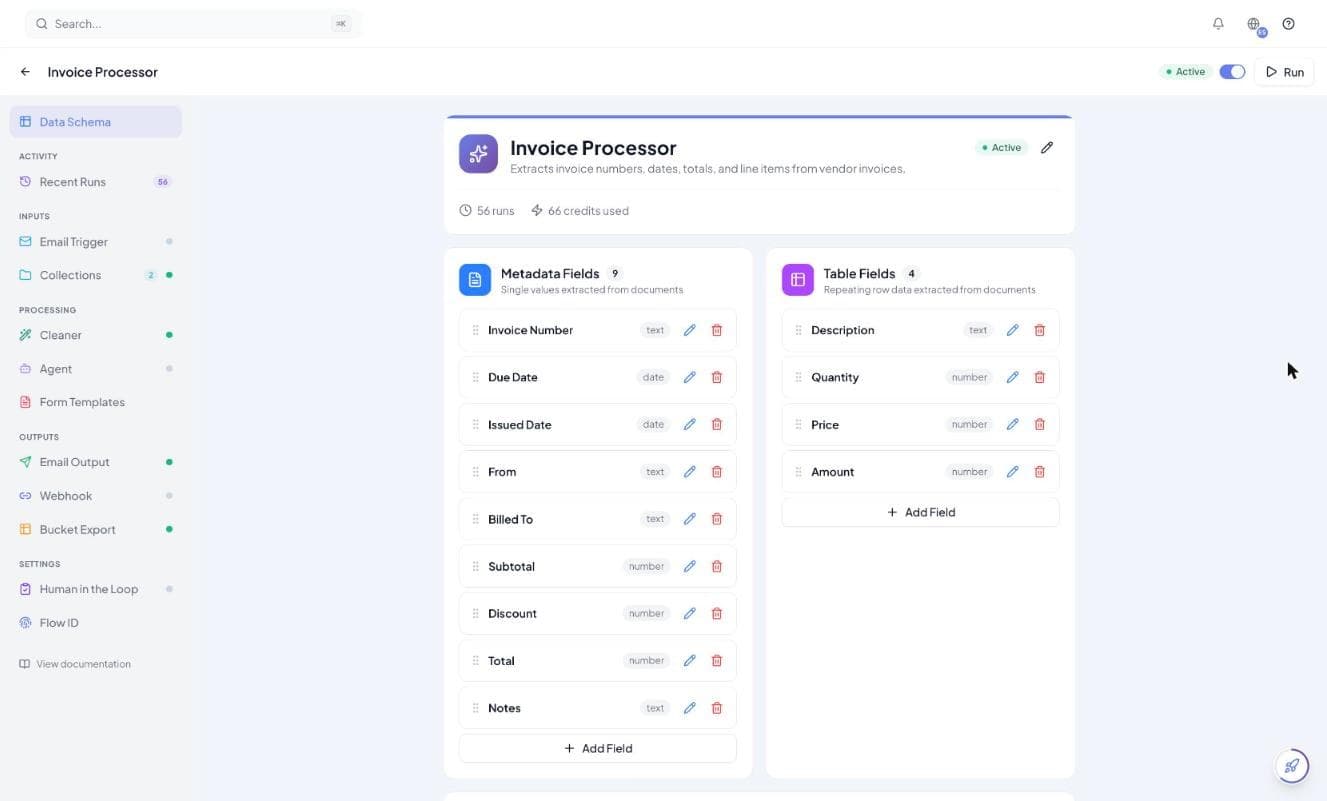
A flow needs at least one field. Everything else in the rail — Cleaner, agent, webhook, email, Bucket export, review — is optional and can be added later without rebuilding anything.
Metadata fields and table fields
Every field is one of two kinds, decided by whether the value appears once per document or once per line. This is the most consequential choice in the schema: it determines the shape of your webhook payload, your Bucket rows, your CSV and your review screen.
| Metadata field | Table field | |
|---|---|---|
| Appears | Once per document | Once per row of a repeating table |
| On an invoice | Invoice number, issue date, supplier, total | Description, quantity, unit price, amount |
| In the output | The metadata object | One entry per row in rows |
| In a Bucket | Repeated onto every row exported from that document | One Bucket row each |
Defining a line-item column as a metadata field gets you one value from a table of twenty. Defining an invoice total as a table field repeats the same number on every row. If you are unsure, ask whether a second copy of the value could ever appear on the same document.
A flow can also stamp system columns onto every row it outputs — the flow ID, the flow name and the run ID. Turn these on when several flows write into one Bucket and you need to know which document a row came from.
Data types
Each field carries a type. Types are not cosmetic: they decide whether a value sorts, sums, compares in a Cleaner rule and charts correctly. Setting them right at the flow saves work at every later stage.
| Type | Use for | Notes |
|---|---|---|
| Text | Names, addresses, descriptions, reference codes | The safe default. |
| Number | Totals, quantities, prices, rates | Required if you want to sum, compare or chart the value later. |
| Date | Issue dates, due dates, delivery dates | Reformatting to a consistent output format is a Cleaner job, not an extraction one. |
| Mixed / alphanumeric | Values that blend letters and digits — part numbers, container codes, tax IDs | Use this rather than Number when leading zeros or letters must survive. |
| Image | Figures printed in the document: photos, logos, signatures, stamps | Extracted and stored securely, then delivered as a time-limited link. |
Do not use the type to reformat. Pull the value the way the document shows it, then let a Cleaner convert currencies, restate dates and fix decimal separators. Extraction that also transforms is harder to debug when a number comes back wrong.
Extraction hints
Hints are how you disambiguate a field without writing a template. They matter most when a document contains several values that look alike — three dates, two totals, an order number and an invoice number in the same header block.
For a metadata field you can combine any of these:
| Hint | What it tells the AI | Good for |
|---|---|---|
| Example values | Real values copied from your documents. | Almost everything. The single highest-value hint — it shows format, length and shape at once. |
| Next to a label | The printed label the value sits beside. List the variants: Invoice Number, Invoice #, Inv No. | Header fields that different vendors label differently. |
| In a specific page area | One of nine zones — top-left through bottom-right. | Values that are always in the same corner, like a document number top-right. |
| Expected range | A minimum, a maximum, or both. Treated as guidance, not a hard rule. | Catching a decimal-point misread — a total of 27,030 where 270.30 was meant. |
| Additional hints | Free text for anything the options above do not cover. | Rules like “use the net figure, never the gross one”. |
For a table field the hints are different, because the AI is locating a column rather than a point on the page:
| Hint | What it tells the AI |
|---|---|
| Source type | Whether the data sits in a real ruled table or in free-form text that only reads like a list. Set free-form when there is no visible grid. |
| Column header | The header text as printed. List every variant your vendors use so one field matches them all. |
| Expected range | A sanity range for the numbers in that column. |
| Example values | Real cell values from your documents. |
| Field meaning | What the column actually represents, when the header alone is ambiguous — “unit price before discount”. |
Add fields, run one real document, and only add hints where the result was wrong. Hinting everything up front costs time on fields that were never ambiguous, and an over-specified hint can make extraction worse by ruling out a layout you did not anticipate.
Example values are skipped for date and image fields, so put any date guidance in the additional-hints box instead.
Composite fields
Some table columns hold several values in one cell — a size-and-quantity breakdown like S:2 M:5 L:3 printed in a single box. A composite field splits that cell into sub-fields so each part becomes its own value instead of a string you have to parse later.
- 1Add a table field and switch Composite Field on.
- 2Define the sub-fields that make up the cell — for example
sizeas text andquantityas a number. - 3Add example values showing how the grouping appears in your documents.
Sub-fields hold single values, so they can be text, number, date or mixed — but not images. Composite fields are only available on table fields, because the whole point is unpacking a repeating cell.
The metadata equivalent is Accept multiple values. Turn it on when a single document can legitimately carry several of the same thing — a set of receipt numbers, several purchase-order references — and the field returns a list instead of one value.
Extracting images
An image-typed field pulls a figure out of the document rather than text: a product photo, a signature, a stamp, a logo. A metadata image field holds one image per document; a table image field gives each row the image belonging to it.
- Images are stored privately, so they arrive downstream as time-limited links rather than raw bytes
- The same link appears in the webhook payload, the email output and the CSV cell
- Download promptly rather than storing the link — it expires
- Image fields cannot be composite, and example-value hints do not apply to them
Build the schema
Build metadata fields first, then table fields, then hints. Test against a real document early — a schema that looks right on paper and a schema that survives your actual paperwork are different things.
- 1Create the flow. Give it a name that describes the document (Supplier invoices) and a real description — it improves extraction accuracy and is what a Collection matches on later.
- 2Add a metadata field for each value that appears once per document, setting the data type as you go.
- 3Add a table field for each column of the repeating line-item table.
- 4Add extraction hints only to the fields that need them.
- 5Switch the flow to Active, process one real document, and compare the result against the source.
Uploading a sample document during setup gets you a suggested set of fields to edit, which is faster and usually more complete than typing them from memory. Treat it as a starting point — delete what you will not use, because every extra field is more to review and more that can go wrong.
Renaming a field changes the key in every downstream consumer: the webhook payload, the Bucket column mapping, the CSV header and any Cleaner that reads it. Check what is attached before renaming a field on a flow that is already running.
What you can attach to a flow
The schema decides what comes out; the rest of the flow decides what happens to it. Each item below is independent — attach only what you need, in any order, at any time.
| Stage | Attachment | What it does |
|---|---|---|
| Inputs | Email Trigger | Gives the flow its own inbox address so forwarded attachments are processed automatically. |
| Inputs | Collections | Lists the Collections that can route documents to this flow. |
| Processing | Cleaner | Sweeps every run's rows: reformat, convert, compute, look up, and fire rules. |
| Processing | Agent | Runs after extraction, using extracted fields as its inputs. |
| Processing | Form Templates | Fills a PDF template from the extracted values. |
| Outputs | Email Output | Emails results to one or more addresses when a run completes. |
| Outputs | Webhook | POSTs results to your endpoint. HTTPS only. |
| Outputs | Bucket Export | Appends each run's rows to a structured table, with fields mapped onto columns. |
| Settings | Human in the Loop | Pauses runs for a named reviewer before anything is delivered. |
| Settings | Flow ID | The identifier you pass when calling the API. |
What happens when a run executes
Every document becomes a run, and every run moves through the same sequence. Knowing the order tells you where to look when something arrives late, arrives wrong, or does not arrive at all.
- 1The document is stored and the run is queued.
- 2Extraction reads it and produces metadata values and table rows, charged at one credit per page.
- 3If a Cleaner is attached, it sweeps those rows — conversions, computed columns, lookups.
- 4Conditional rules fire: rows can be dropped, notifications sent, review requested.
- 5If review is required, the run pauses and nothing is delivered until a reviewer approves.
- 6Outputs run in order: email, webhook, Bucket export, form fill, then any chained agent.
| Run status | Meaning |
|---|---|
| Queued | Stored and waiting for a worker. |
| Processing / running | Being extracted, or resuming after an approval. |
| Awaiting review | Paused for human review. Nothing has been delivered yet. |
| Completed | Extraction finished and every configured output has run. |
| Cancelled | A reviewer rejected the run, so nothing was delivered. |
| Failed | The document could not be processed. The run's log says why. |
Everything a run did is recorded in its log, including which outputs fired and what each one returned. That log is the first place to look before assuming a delivery problem is on your side.
Improving extraction quality
When a field comes back wrong, the fix is nearly always in that field's definition rather than in the document. Work through these in order — the first two solve most cases.
| Symptom | Likely cause | Fix |
|---|---|---|
| The wrong one of several similar values | Nothing distinguishes them. | Add the label the value sits next to, or the page area it appears in. |
| A field comes back empty | The field name alone did not identify it. | Add two or three real example values — usually enough on its own. |
| Only one line item, when there are many | It was defined as a metadata field. | Redefine it as a table field. |
| The same value repeated on every row | A document-level value was defined as a table field. | Redefine it as a metadata field. |
| Numbers off by a factor of a hundred | Decimal and thousands separators read the wrong way round. | Set an expected range, and normalise the format in a Cleaner. |
| Leading zeros or letters dropped | The field is typed as Number. | Change it to Mixed / alphanumeric. |
| Columns confused with each other | Two columns have similar headers. | Add the printed column header, and the field meaning. |
| Good on some vendors, poor on others | The hints describe one vendor's layout. | Add the other vendors' label and header variants to the same field. |
Re-run the same document after each change. Editing four hints at once and re-running tells you the result improved but not which change did it — and one of the four may have made things worse.