
Getting Started
What Tavnit does
Tavnit reads documents and gives you structured data back. You describe the fields you want once, send it invoices, receipts, purchase orders, statements, spreadsheets or forms, and get typed rows out — without building a template per layout or writing any parsing code.
Extraction is the starting point rather than the whole product. Around it, Tavnit can sort and split incoming files, clean and enrich the rows, compare and check documents against each other, fill forms, pause for a person to review, store results in tables, deliver them to your systems, and hand them to a browser agent that acts on them. This page gives you the map and walks you through your first document.
Pipelines, Subjects, Matchers, Inspectors, Fillers, Signals and Nets carry a Beta label in the app. You can use them today, but their screens and options may still change.
A map of Tavnit
The app's sidebar groups every area by the job it does, from getting documents in to acting on the data. The docs follow the same groups, so this table doubles as a table of contents.
| Group | Area | What it does |
|---|---|---|
| Input | Collections | One inbox or endpoint for mixed documents: each one is classified and routed to the right flow. |
| Input | Subjects | Model an entity such as a purchase or a patient, and gather its documents into cases by reference. |
| Input | Splitters | Cut one file that holds several documents into separate documents and send each one onward. |
| Processing | Flows | The schema for one document type: the fields to extract and everything attached to them. Everything starts here. |
| Processing | Cleaners | Reformat, convert, compute, look up and validate extracted rows, and trigger actions when something looks wrong. |
| Processing | Agents | Browser agents that carry out a plain-language mission on a website, often using extracted data as input. |
| Intelligence | Matchers | Compare records line by line across documents — quotes against each other, an invoice against its order. |
| Intelligence | Inspectors | Run a checklist over a set of related documents and get a pass or fail verdict. |
| Intelligence | Fillers | Fill PDF form templates with data extracted from your documents. |
| Orchestration | Pipelines | Chain steps end to end on a visual canvas. |
| Orchestration | Pipeline Map | One picture of how documents move through your organization. |
| Data & activity | Buckets | Tables where results accumulate across runs, ready to query, chart and export. |
| Data & activity | Runs | The history of every processed document, with its result, source file and log. |
| Data & activity | Human in the Loop | A review queue where a person approves, edits or rejects results before they are delivered. |
| Audio | Signals | Turn recorded conversations into structured rows. |
| Social | Nets | Turn social media posts into structured rows and trends. |
These three areas are switched on per organization. If they are missing from your sidebar, contact the Tavnit team to have them enabled.
If each file holds one document but you do not know its type, use a Collection. If one file holds several documents, use a Splitter. If documents belong together — the same purchase, the same patient — use a Subject. If you already know what the document is, send it straight to the flow and skip all three.
Your first minutes
A new organization starts with a short setup path, so you rarely face an empty screen.
- Welcome questions. After you create your organization, Tavnit asks four quick questions: what documents you will process, what you want to accomplish, how your documents arrive today and roughly how many you handle a month. They take about 30 seconds, and you can Skip them.
- One-click starter flows. If you answered, the empty Flows page offers the templates that match your documents under “Based on your answers, we can set these up for you”. Click Create these flows and they are created for you, ready to edit.
- Starter templates. Tavnit ships ready-made flows for invoices, purchase orders, receipts, bank statements, delivery notes, lab results, contracts, quotes, credit notes, ID documents and resumes. Templates that match your answers are shown first.
- The getting-started guide. A small panel in the corner of the app with three tabs: Checklist (setup steps that tick themselves off as you complete them), This screen (tips for the page you are on) and Features (every area available to you). If you hide it, reopen it from the Help & Support menu.
Step 1: create a flow
A flow is the schema for one document type. Name it after the document rather than the project — Supplier invoices, not Q1 automation — because the name and description are also what a Collection uses to route documents to it.
- 1On the Flows page, click Create Flow.
- 2Pick a starting point: From a template (a Tavnit template, or a copy of one of your own flows under My flows), AI suggestion (upload a sample PDF or image and the AI drafts the fields), or Start from scratch.
- 3Give the flow a name of at least 3 characters and a description of at least 10 that says which documents it handles.
- 4In the builder, add, edit or delete fields until the schema is exactly what you need. A new flow is already Active.
- 5Click Run, upload one real document and check the result.
Flows covers each of these steps in depth — field kinds, data types, the hints that tell the AI where to look, and the Diagnose button that proposes fixes once a flow has real runs.
The description is required, and it earns its place twice: it helps the AI extract more accurately, and it is what lets a Collection route documents to the flow. A vague description makes both worse.
Step 2: metadata fields and table fields
Tavnit distinguishes values that appear once per document from values that repeat. That single distinction decides the shape of everything downstream — your webhook payload, your Bucket rows and your CSV all follow it.
| Field kind | Appears | On an invoice |
|---|---|---|
| Metadata field | Once per document | Invoice number, issue date, supplier, total |
| Table field | Once per line item | Description, quantity, unit price, amount |
Each field also has a data type — Text, Number, Date, Mixed/Alphanumeric or Image — and getting it right matters more than it looks: a total typed as text will not sum, compare or chart. A flow with only metadata fields returns a single row per document. Flows covers the full schema, including extraction hints, composite fields and how to fix a field that comes back wrong.
Step 3: send documents in
Four ways in, all producing the same kind of run. Start with a manual upload to prove the flow works, then switch to whichever route matches how documents actually reach you.
| Route | Good for | Setup |
|---|---|---|
| Upload in the app | Testing, and one-off documents | Nothing. Select several files at once and each becomes its own run |
| Documents that already arrive in an inbox | Turn on the flow's Email Trigger and forward mail to its address | |
| REST API | Your own systems, and high volume | An API key and a POST |
| MCP connector | Ad-hoc work from an AI assistant | Enabled per organization on request, then a connector URL from Integrations |
Flows accept PDFs, images (PNG, JPG, JPEG and JFIF) and spreadsheets (XLSX, XLS and CSV). For a spreadsheet, the flow reads the first visible sheet. Scanned documents are detected and read with OCR automatically.
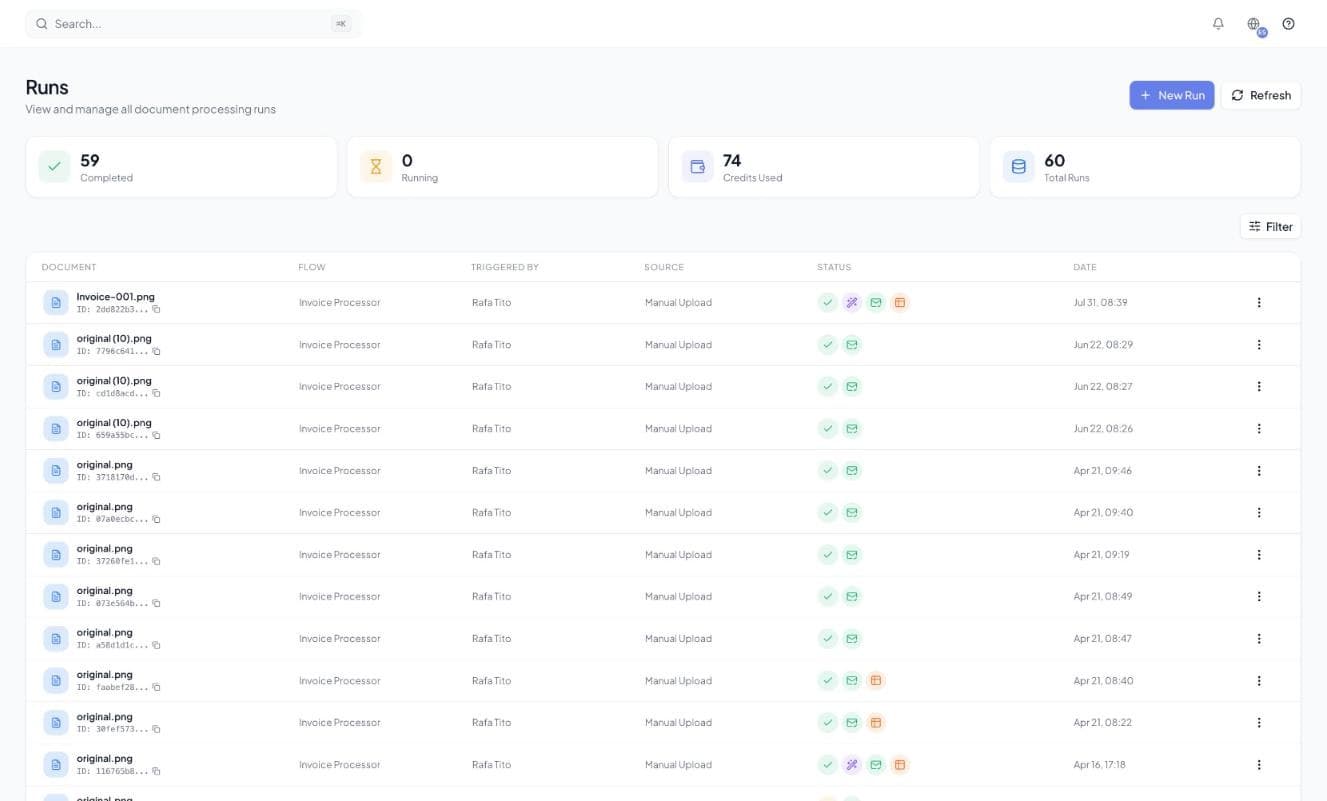
Open any run to see the extracted fields beside the source document, plus the log of what happened during processing. That log is the first place to look when a result is not what you expected.
Where to go next
Once extraction works, the next step depends on what is wrong with the data or what you need to do with it.
| If you need to… | Read |
|---|---|
| Extract more fields, or fix one that comes back wrong | Flows |
| Fix formats, convert currencies, compute totals, or flag bad rows | Cleaners |
| Have a person check results before they go anywhere | Human in the Loop |
| Get the data into your own systems | Webhooks or the REST API |
| Keep results together and query them | Buckets |
| Compare documents, or check them against a list of rules | Matchers and Inspectors |
| Connect several steps into one process | Pipelines |
| Act on the data somewhere else on the web | Agents |
| Control who can see and change what | User roles |