
Cleaners
What a Cleaner does
A Cleaner is a set of rules that runs over the rows a flow has already extracted. It standardises formats, converts currencies and units, translates text, computes new columns, looks values up against your own data, and can trigger actions when a row breaks a rule.
Extraction answers “what does this document say?”. A Cleaner answers “what shape does that have to be in before it can go into our systems?” — one date format, one currency, part numbers matched to your catalogue, a total that adds up.
| A flow | A Cleaner | |
|---|---|---|
| Works on | A document | The rows a flow produced |
| Produces | Raw extracted fields | Normalised, enriched and validated columns |
| Typical job | Read the invoice | Convert EUR to USD, reformat the dates, flag the total that does not match |
| Attached to | Nothing — it is the starting point | One or more flows, or run on its own |
Building a Cleaner
A Cleaner is built base fields first. Base fields are the columns coming in; everything else is computed on top of them. You can define them by hand, import them from a flow, or parse them from a spreadsheet header row.
- 1Go to Cleaners and create a new one. Name it after the data, not the document — Invoice line items rather than Cleaner 3.
- 2Choose a data source for the base fields: Manual to define them from scratch, From Flow to import an existing flow's output fields, or From File to read them from a CSV or Excel header row.
- 3Add computed fields — the enrichment types in the table below. This step is optional; a Cleaner with only base fields is a valid pass-through.
- 4Configure the sweep output: an email address, a webhook URL, or neither. Also optional.
- 5Link the Cleaner to a flow so every new run is swept automatically, or leave it standalone and run it against uploaded datasets.
If you imported base fields from a flow and later change that flow's fields, use Sync from Flow on the Cleaner. It shows what is new, what changed type and what no longer exists, and applies the differences — rather than leaving the Cleaner reading columns that stopped being produced.
Field type reference
Every column in a Cleaner has a type that decides what it does. Base fields pass values through; the other types compute a value from the row, from your Buckets, or from an AI judgement. This is the complete set.
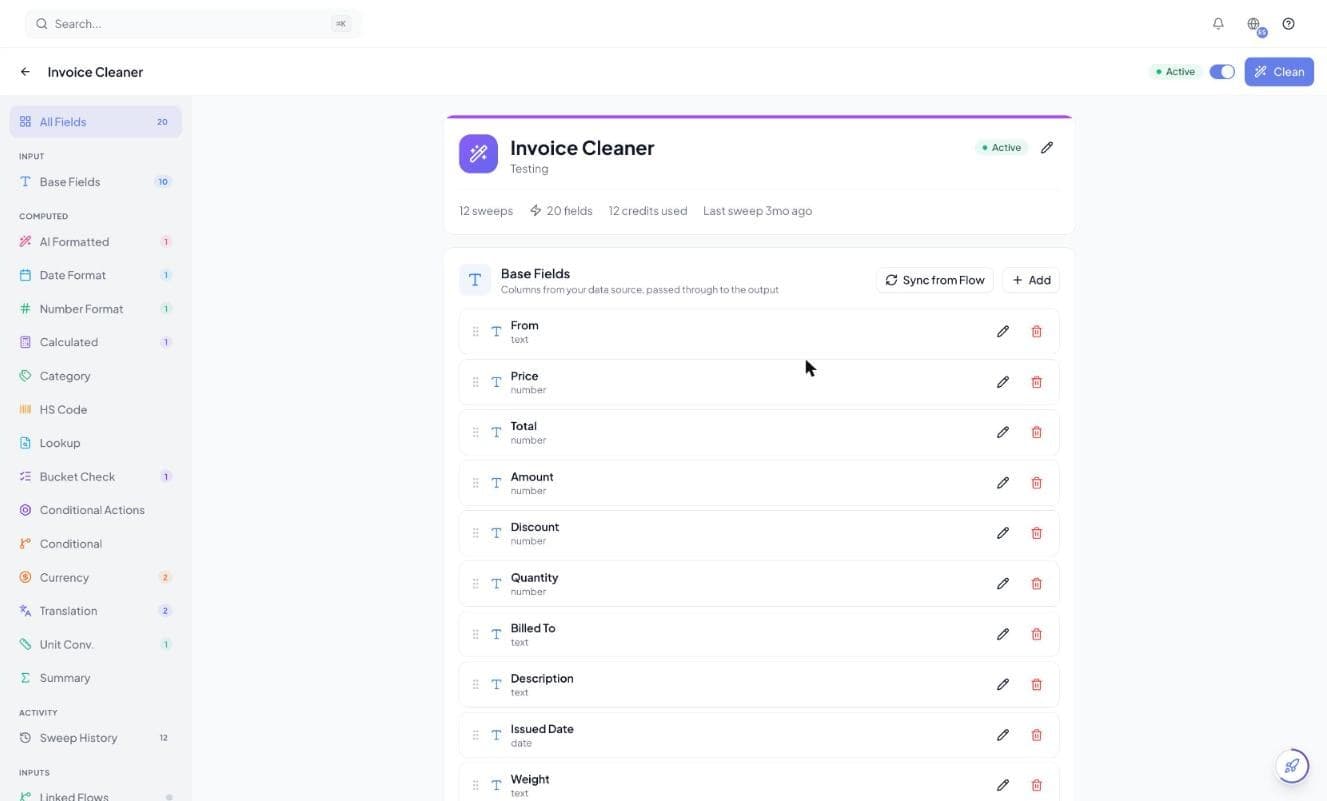
| Field type | What it produces |
|---|---|
| Base | A column from the incoming data, passed through to the output. |
| AI Formatted | An AI rewrite of a base column — normalising a supplier name, tidying an address, standardising a description. |
| Date Format | A date column re-rendered in one consistent output format, whatever shape it arrived in. |
| Number Format | A numeric column with a fixed number of decimals and your choice of separators. |
| Calculated | A value derived by formula from other columns in the same row. |
| Category | An AI classification into a fixed list of options you define — expense type, department, priority. |
| HS Code | An AI tariff classification against the Panama tariff schedule (HS 2022). |
| Lookup | A value pulled from a Bucket by matching this row against it — a catalogue price, a customer code. |
| Bucket Check | A yes/no answer to whether this row already exists in a Bucket. Useful for de-duplication. |
| Conditional Actions | Not a value — a rule that fires actions when a row matches. See below. |
| Conditional | An if/else value: branch on the row's contents and output a different value per branch. |
| Currency | A monetary value converted to a target currency at current published rates. |
| Translation | Text translated into a target language. |
| Unit Conversion | A measurement converted between units — mass, length, volume, area, speed or data size. |
| Summary | An aggregate computed across every row of the sweep, not per row. |
Computed fields have an output mode. Replace overwrites the source column in place; new column keeps the original and writes the result alongside it. Keep the original when a reviewer will need to see what the document actually said — for example when converting currency.
A field can be excluded from the output while still being available to computed columns. That is how you use an intermediate value — a raw amount, a lookup key — without shipping it downstream.
Conditional Actions
A Conditional Actions field is a rule: when a row matches these conditions, do these things. It is the only field type that changes what happens to the run rather than what a cell contains, and it is how validation failures become something other than a number in a table.
| Action | What it does |
|---|---|
| Skip row | Drops the matching row from the output entirely — the way to filter out subtotals, blank lines and header junk. |
| Send for review | Pauses the run for human review and assigns the reviewers you name on the action. The matching rows and fields are flagged in the review screen. |
| Sends a notification to the addresses you list, with a subject and body you write. One send per rule per run, not one per matching row. | |
| Webhook | POSTs a notification to a URL you specify. Same one-send-per-rule behaviour. |
| Edit a Bucket row | Writes a value back into a Bucket row that a Lookup field matched — marking an order received, decrementing stock, setting a status. |
Conditions are grouped, and groups combine with AND or OR, so you can express things like (total > 10,000 OR currency is not USD) AND supplier is not on the approved list. A rule with no conditions at all fires on every row.
Email and webhook actions are dispatched as soon as the rule matches — before any review pause. That is deliberate: alert me when this happens should not depend on whether a reviewer later approves the run.
Worked example. On an invoice Cleaner, add a Conditional Actions field with two rules. The first matches rows where the line total does not equal quantity × unit price and sends the run for review. The second matches any invoice over your approval threshold and emails the finance lead. Everything else flows straight through to the Bucket without a human touching it.
Calculated fields and formulas
A Calculated field evaluates an arithmetic expression against the row it is on. Reference other columns by name in braces, and start the formula with an equals sign if you like — both ={Quantity} * {Unit Price} and {Quantity} * {Unit Price} work.
| Supported | Notes |
|---|---|
+ − * / % ** | Add, subtract, multiply, divide, remainder, power. Parentheses group as usual. |
{Field Name} | A reference to another column in the same row. Spaces in the name are fine. |
| Numbers written as text | Coerced automatically, so “1,234.50” behaves as a number. |
| Blank cells | Count as zero, so a missing optional column does not fail the row. |
Formulas are arithmetic only — there are no functions, no text operations and no conditionals. For if/else logic use a Conditional field; for totals across rows use a Summary field. Dividing by zero fails that row rather than silently returning a blank, so guard columns that can legitimately be zero.
Summary fields
Summary fields aggregate across every row in the sweep instead of computing per row. They answer “what is the total of this document?” without you having to sum the rows downstream.
| Aggregation | Result |
|---|---|
| Sum | Total of a numeric column |
| Average | Mean of a numeric column |
| Median | Middle value of a numeric column |
| Min / Max | Smallest and largest value |
| Count | How many rows have a value in that column |
| Count unique | How many distinct values appear |
HS Code classification
The HS Code field assigns a customs tariff code to each row from its product description. It works down the Panama tariff schedule (HS 2022) — section, then chapter, then heading, then national tariff line — applying the chapter legal notes rather than pattern-matching a description against a code list.
- Pick which columns the classifier reads — usually the product description, sometimes with material or use alongside it. Leave it unset and the whole row is used.
- Add instructions for the cases your catalogue gets wrong: how to treat kits, spare parts, or goods that could sit in two chapters.
- Rows are classified independently, so one hard row does not affect the others.
Tariff classification is a judgement call that customs authorities make. Treat the output as a strong first pass to be checked, not as a filing-ready declaration — this is a good candidate for human review before delivery.
Shaping and delivering the output
Between the computed columns and delivery, a Cleaner can drop junk rows, reshape long data into wide, choose which columns ship, and send the result to an email address or a webhook.
| Setting | What it does |
|---|---|
| Skip rows | Discards the first N rows or all empty rows of a manual upload before cleaning — for spreadsheets with title rows above the header. |
| Pivot | Reshapes rows into wide format at delivery: one column per distinct label, plus optional per-row summary columns. Stored rows stay in long format. |
| Output fields | Chooses which columns appear in the output. Excluded columns are still usable by computed fields. |
| Email output | Sends the cleaned result to an address after each sweep. |
| Webhook | POSTs the cleaned result to a URL after each sweep. HTTPS only — see webhooks. |
Pivot applies to the webhook payload, the email output and downloads. Bucket exports always receive the un-pivoted rows, so the stored table keeps one row per record.
Sweeps and credits
A sweep is one execution of a Cleaner over a batch of rows. Sweeps run automatically when a linked flow finishes, or on demand when you upload a dataset to clean. Each sweep is billed on the number of non-empty cells it processed, not the number of documents.
| How a sweep starts | When to use it |
|---|---|
| Linked to a flow | Every run of that flow is swept as soon as extraction completes. This is the normal setup. |
| Manual upload | Clean a CSV or Excel file that did not come from a flow — a supplier price list, a legacy export. |
Cleaning credits are charged per 500 non-empty cells, rounded up, with a one-credit minimum. Empty cells are not counted, so a wide table with many optional columns costs less than its dimensions suggest. Every sweep records the cells processed and the credits it used.
Open a sweep from the Cleaner's Sweep History to see the rows it produced, the credits it consumed, and per-row errors — a formula that divided by zero, a lookup that matched nothing, a value that failed validation. Errors are attached to the row that caused them, so a single bad row does not fail the sweep.
Where a Cleaner sits in the pipeline
Cleaning happens after extraction and before delivery. That order matters: everything downstream — the review screen, the webhook payload, the Bucket rows, an agent's input variables — sees the cleaned output, not the raw extraction.
- 1The flow extracts rows from the document.
- 2The linked Cleaner sweeps those rows: formats, conversions, lookups, computed columns.
- 3Conditional Actions fire — rows are dropped, notifications go out, review may be requested.
- 4If review was triggered, the run pauses and a reviewer sees the cleaned table.
- 5On completion, results are delivered: email, webhook, Bucket, form fill, or a chained agent.
The Pipeline Map shows this for your own workspace, including which flows share a Cleaner.